Published
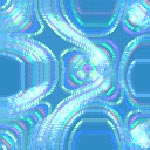
This tip will show you a method to create a cool "Neon Lights" texture.
Step 1
Begin by creating a new document–the example is 128x128. Choose a light blue shade for the foreground color and a dark blue shade for the background color. 
Step 2
Now, go to Filter » Render » Clouds. Press Cmd+F (PC: Ctrl+F) several times until you get the clouds the way you like them. 
Step 3
Next, we will make the “Neon Lights”. Go to Filter » Artistic » Paint Daubs, and fill in the following values: Brush size: 40, Sharpness: 36, Brush Type: Sparkle. That’s it! You now have your neon texture–to make it seamless, go to Filter » Other » Offset, set it to Wrap Around and half the dimensions of your image. Use the Smudge Tool to blend the edges where you can see a seam. 